Wednesday, August 16, 2017

5 hidden iPhone gestures 2017

5 hidden iPhone gestures 2017
It’s been ten years since Apple launched the first iPhone. The original iPhone changed how we had used our phones thanks to its never-seen-before features and gestures. Apple iPhone has changed so much since then with the introduction of 3D Touch, iMessage, Spotlight and much more.
hidden iPhone gestures 2017
If you now have a newer iPhone model, keep in mind that this thing in your hand ranks among the most desired smartphones on the market. In this post, we have compiled a list of five hidden iPhone gestures. Before proceeding, you need an iPhone with 3D Touch support.
  1. 3D Touch Settings icon

3D Touch is one of the most noticeable additions to iPhone lineup. When you perform a 3D Touch firm press on an app, you will be presented with a list of quick actions. If you now have an iPhone 6s or newer, you will be happy to know that you can also press firmly (3D Touch) on the Settings icon to bring up quick actions. You can quickly go to Wi-Fi, mobile data, Battery and Bluetooth sections right from the home screen.
hidden iPhone gestures 2017

  1. Quickly turn keyboard into trackpad

On iPhone 6s or newer, you can turn your keyboard into trackpad within any app that supports keyboard. To do this, you simply need to head to an app where you can enable keyboard like Notes and Messages, and tap on the input space to fire up keyboard. After that, press deeper anywhere on the keyboard and the keyboard will quickly turn into trackpad. From here, you can move the cursor left/right, or move up or down the line.
  1. Spotlight search from notification center

There are a lot of useful tricks you can perform on your iPhone. However, not all of them are obvious to users. While some are hidden deep in Settings, some come bundled with your favorite apps. In this case, if you now have an iPhone 6s or newer, you can quickly get Spotlight search from notification center.
To do this, head to any app on your iPhone, swipe down from the top of the app (Make sure that you do it slowly) and release your finger. Once you are done, you will be directly taken to Spotlight Search.
  1. 3D Touch in Instagram
Third-party developers have been working on making their apps compatible with Apple’s 3D Touch. Instagram is leading the way by baking 3D Touch into its mobile app. If you now have the latest version of Instagram, you can 3D Touch to see a bigger preview of a multi-image post. Once you are done, move you finger left or right to see all your photos.
  1. Scroll to bottom in Photos app
On iPhone, while you are in the Photos app, you can quickly head to the bottom by simply tapping between the icon space at the bottom of the app. This comes in handy especially if your favorite photos are at the bottom of the app.

If you lost videos from iOS Camerall Roll which are nowhere to download again, you can use Gihosoft iPhone Data Recovery to get back deleted videos from iOS device including iPhone, iPad and iPod Touch.


These are five hidden iPhone gestures you should know about. Hope you found them handy. If you have got a favorite, feel free to let us know in the comments below.

Sunday, August 13, 2017

How to connect AirPods to the iPhone ?

Follow these steps to connect AirPods to your iPhone for the first time:
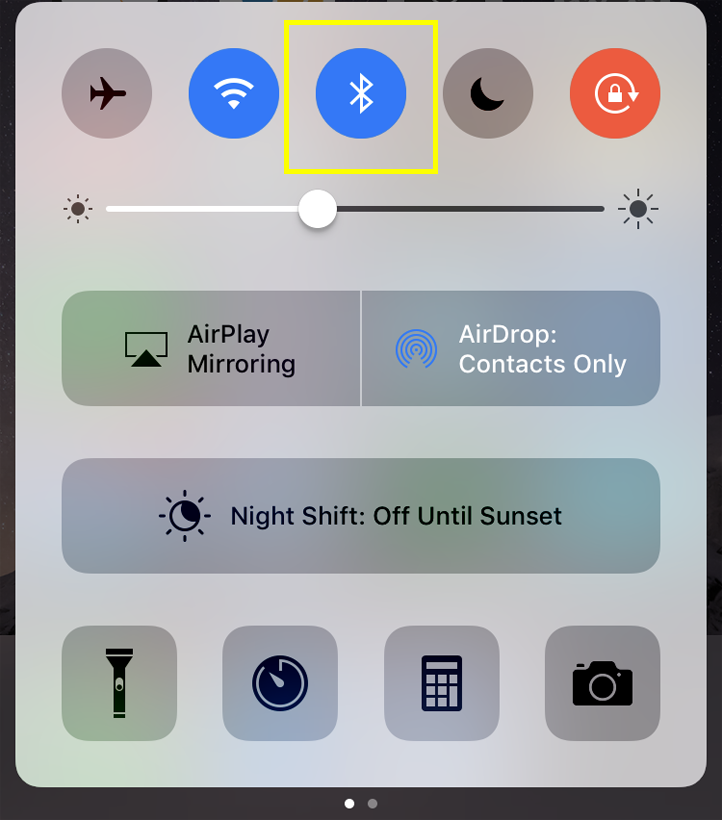
  1. Unlock the iPhone and make sure Bluetooth is ON in the Control Center.
  2. Bluetooth Control Center iOS 10 Must Read:enigma recovery
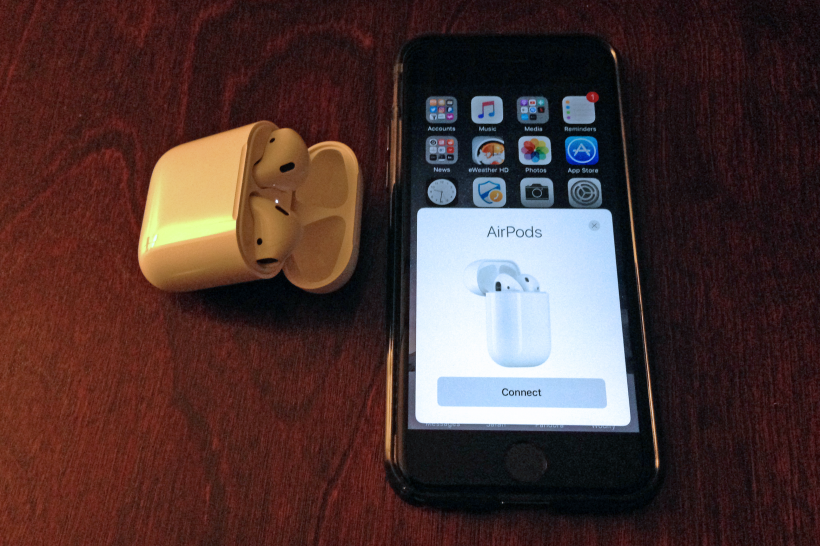
  3. Hold the AirPods close to the iPhone and open the case. The white light indicates AirPods are ready to pair.How to transfer messages from iPhone to iPhone Must read:Gihosoft Free iPhone Data Recovery:https://www.gihosoft.com/iphone-data-recovery-free.html
  4. Pairing AirPods with iPhone 7
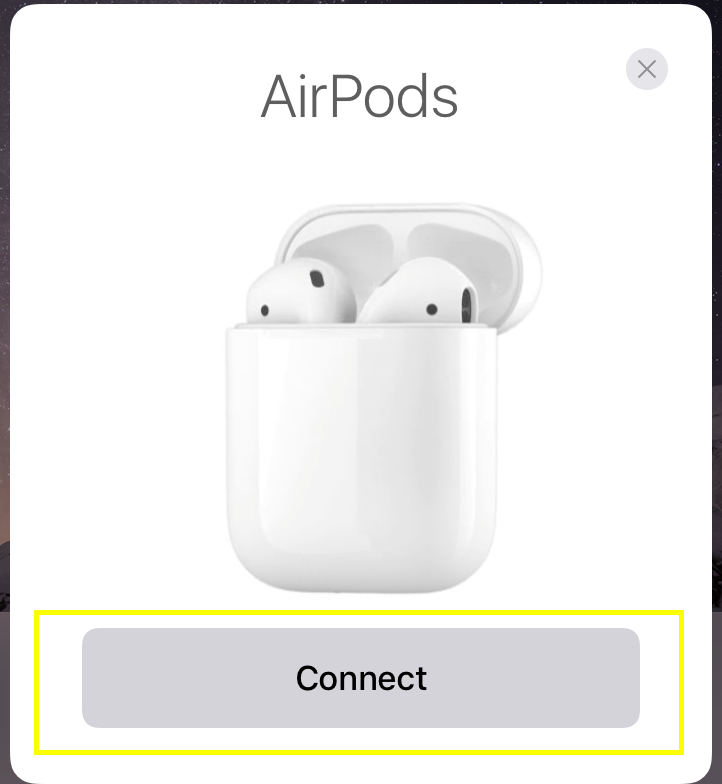
  5. Tap the Connect button on the iPhone.
  6. AirPods connect prompt
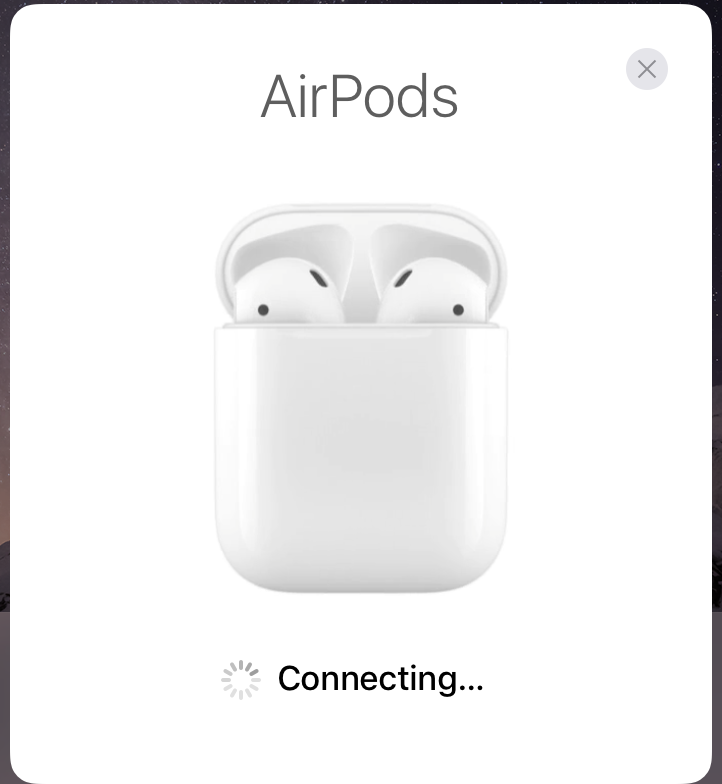
  7. The AirPods will pair with your device, as well as other Apple products signed into the same iCloud account.
  8. AirPods connecting iOS 10
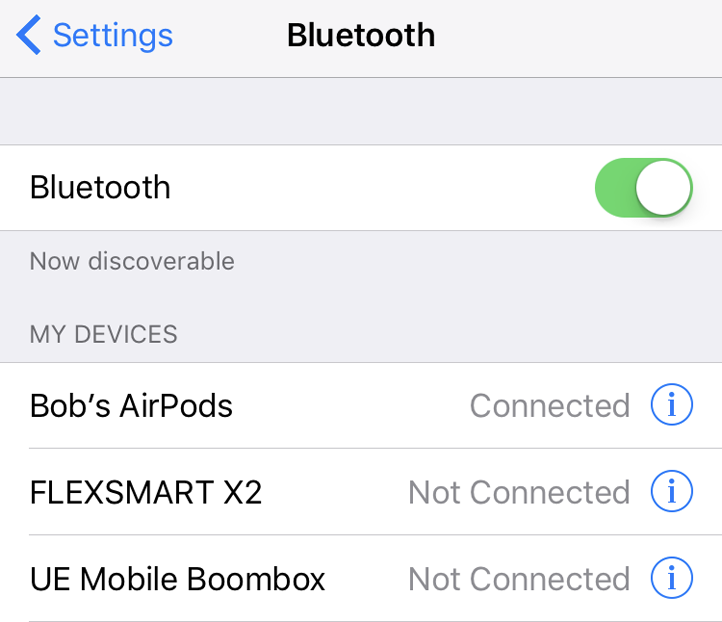
  9. The iPhone is now ready to play music, use Siri or make phone calls using AirPods. You can check Settings -> Bluetooth to verify paired devices.
  10. Bluetooth Settings iPhone
Note that pairing AirPods with a second iPhone, or a device logged into a different iCloud account requires an extra step. After opening the case next to the iPhone (Step 2 above) follow the prompts on the iPhone. The iPhone will ask you to press and hold the button on the back of the AirPods case. Must Read:delete wechat account

How to add a zoom magnifying glass to your images on iPhone and iPad ?

How to add a zoom magnifying glass to your images on iPhone and iPad ?

Once you have taken a screenshot or saved an image, you can use the native iOS Photos application to include effects such as a magnifying glass with zoom to clarify concepts, explain functions, or simply point to something in particular.


1. Take a screenshot where you want to add the effect.

2. Access the native iOS Photos app on your iPhone or iPad.

3. Open the picture, image or screen shot in question.

4. Press the edit button in the form of three horizontal parallel lines.

5. Next, press the button with circular shape with three points inside.

6. Select the "Dialing" option. Must Read:videos cache
Must Read:how to import photos from iPhone to windows 8
7. At the bottom you will see a button that shows an "a" with a magnifying glass. Put it on. 8. The magnifying glass of this functionality has two small points, one green and one blue. The blue point serves to resize the magnifying glass, while the green point serves to adjust the zoom. 9. Place the magnifying glass in the position you want, adjust its size and press Ok. 10. Save the applied changes to the photo, the image or the screenshot and go. You have already added a magnifying glass with zoom for your tutorials and / or to explain any concept to your friends and family.

Wednesday, August 9, 2017

How to Call Emergency SOS number using Sleep/wake button in iOS 11 ?

How to Call Emergency SOS number using Sleep/wake button in iOS 11
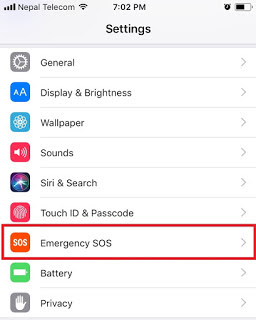
Step 1#: Go to Settings app on your iPhone/iPad/iPod Touch

Step 2#: Tap on Emergency SOS Related Read:iMyFone recover deleted text messages iPhone without backup

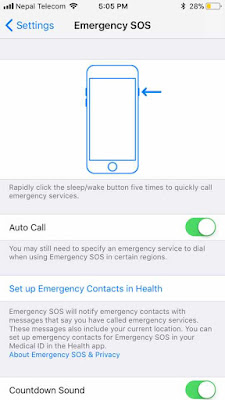
Here's a new function to make emergency SOS call in iOS 11 using power button or sleep/wake button on iPhone

Step 3#: You can see the animation of enabling Emergency SOS.


Here's a new function to make emergency SOS call in iOS 11 using power button or sleep/wake button on iPhone


Step 4#: Enable the Auto Call option.

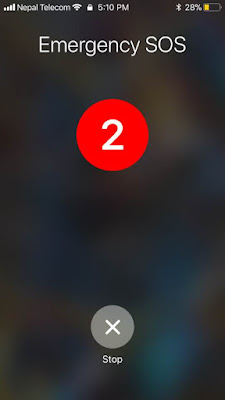
Step 5#: Whenever you are, just rapidly click the power button or sleep/wake button five times to enable Emergency SOS in iOS 11.


Step 6#: Your iPhone will activate an alarm for 3 seconds. After it’s over, it will give an option to make a Emergency call. If no need, you can cancel the call within 3 seconds.If you lost videos from iOS Camerall Roll which are nowhere to download again, you can use Gihosoft iPhone Data Recovery to get back deleted videos from iOS device including iPhone, iPad and iPod Touch.
Jihosoft iPhone Backup Extractor Extract and recover all types of data from iPhone backup files, such as camera roll photos, videos, SMS, contacts, reminders, WhatsApp, and etc.
Gihosoft Android data recovery Free is a super awesome software specialized in Android file recovery. With this program, you are able to recover deleted photos, music, videos, messages, contacts, call logs, WhatsApp messages, Viber chat history and more from Samsung, Huawei, LG, HTC, Motorola, Google, Oneplus, Sony, Lenovo, ZTE and other Android devices directly. Meanwhile, this Android data recovery software is available for both Windows and Mac platforms.


Fix “iPhone Taking Forever to Backup”

 Fix “iPhone Taking Forever to Backup” If iPhone backup is taking hours to complete or forever, you can use any of these guides to fix th...